Customer Portal — User Guide
1. About the portal
The Customer Portal is a secure website of Logistical Data Solutions After you sign in, you see your own data: shipments, customs entries, their documents and messages, and reports. You do not need to install anything; a modern web browser is enough.
What you can do
- Follow your shipments and open the details of each one (Shipments List).
- Follow customs entries, filter them by Customs status and see which have messages (Customs Entries).
- Open the documents of an entry: Cargo Release (CBP 3461), Entry Summary (CBP 7501), Inward Cargo Manifest (CBP 7533) and the ABI Message report.
- Run reports: invoices, statements and others (menu Reports).
- Look up codes in the Harmonized Tariff List.
- Change your own password at any time.
2. Signing in and out
- Open the portal address in your browser.
- Open the account menu (the round icon in the top-right corner) and choose Sign In.
- Enter your login and password and confirm.
The icon shows your state: an outline of a person means you are not signed in; a person with a green check mark means you are signed in. Before you sign in, only the Home item is available in the main menu.
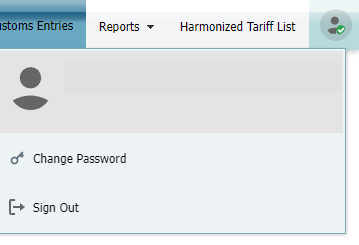
To leave, choose Sign Out in the same menu. Always sign out when you work on a shared computer.
3. Changing your password
- Open the account menu and choose Change Password.
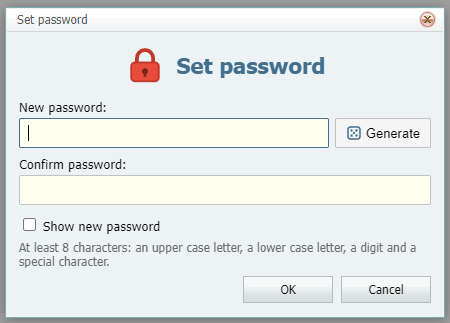
- In the window Set password enter the new password in New password and repeat it in Confirm password. Or press Generate: the portal creates a strong password and fills in both fields.
- Tick Show new password to see the characters, for example to write down a generated password.
- Press OK. The portal confirms the change and you stay signed in.
Password rules
- At least 8 characters.
- At least one upper case letter and one lower case letter.
- At least one digit.
- At least one special character, for example
!#$%&*?. - The new password must differ from the current one.
If the password has expired, the portal asks you to set a new one when you sign in.
4. The main menu
| Menu item | What it opens |
|---|---|
| Home | The website of Logistical Data Solutions |
| Shipments List | The list of your shipments. |
| Customs Entries | The list of your customs entries (when enabled for your account). |
| Reports | A drop-down list of reports. |
| Harmonized Tariff List | The tariff code directory. |
5. Shipments List
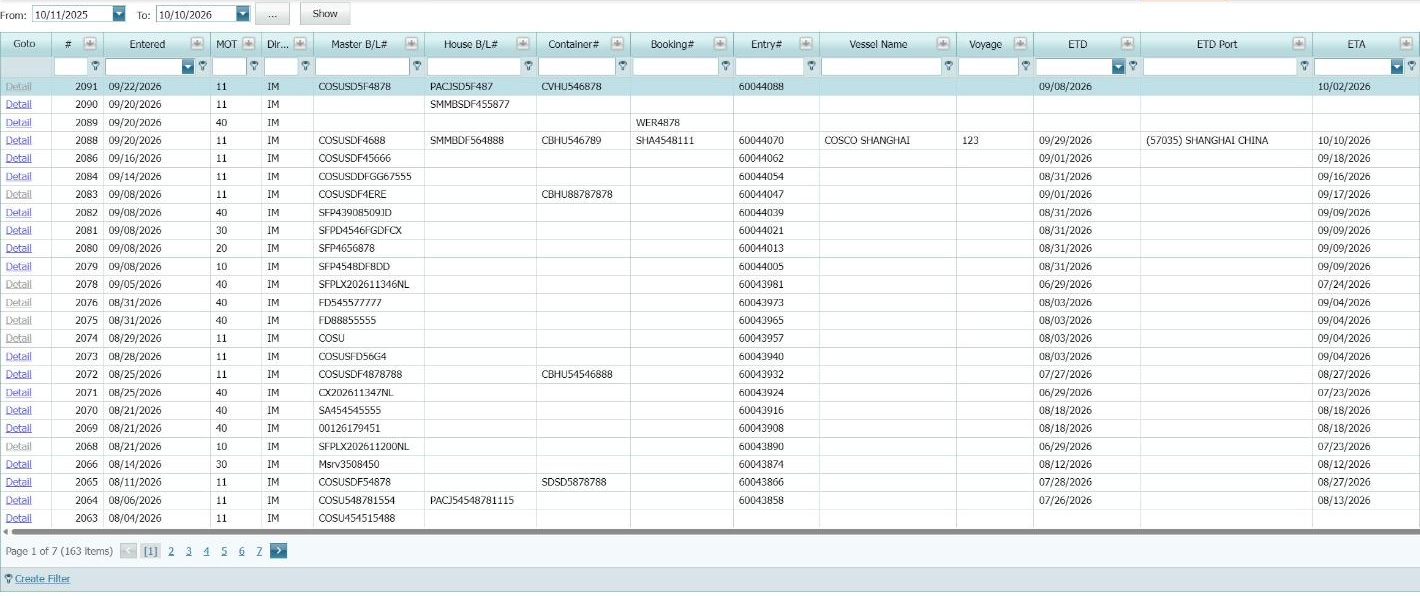
The list shows your shipments for a period. At the top choose the dates in From and To (the button ... offers ready-made periods) and press Show.
Working with the table
- Filter: type a value in the row under the column headers, or use the small filter icon in a header to pick values.
- Sort: click a column header; click again to reverse the order.
- Pages: use the page numbers and arrows under the table; Page size sets how many rows are shown.
- Detail: the link at the start of a row opens the shipment page with its details and documents.
- Scroll the table to the right to see more columns (ETD, ETA, Status and others).
On the shipment page the button Entry Summary (CBP 7501) opens the Entry Summary document for the shipment.
6. Customs Entries
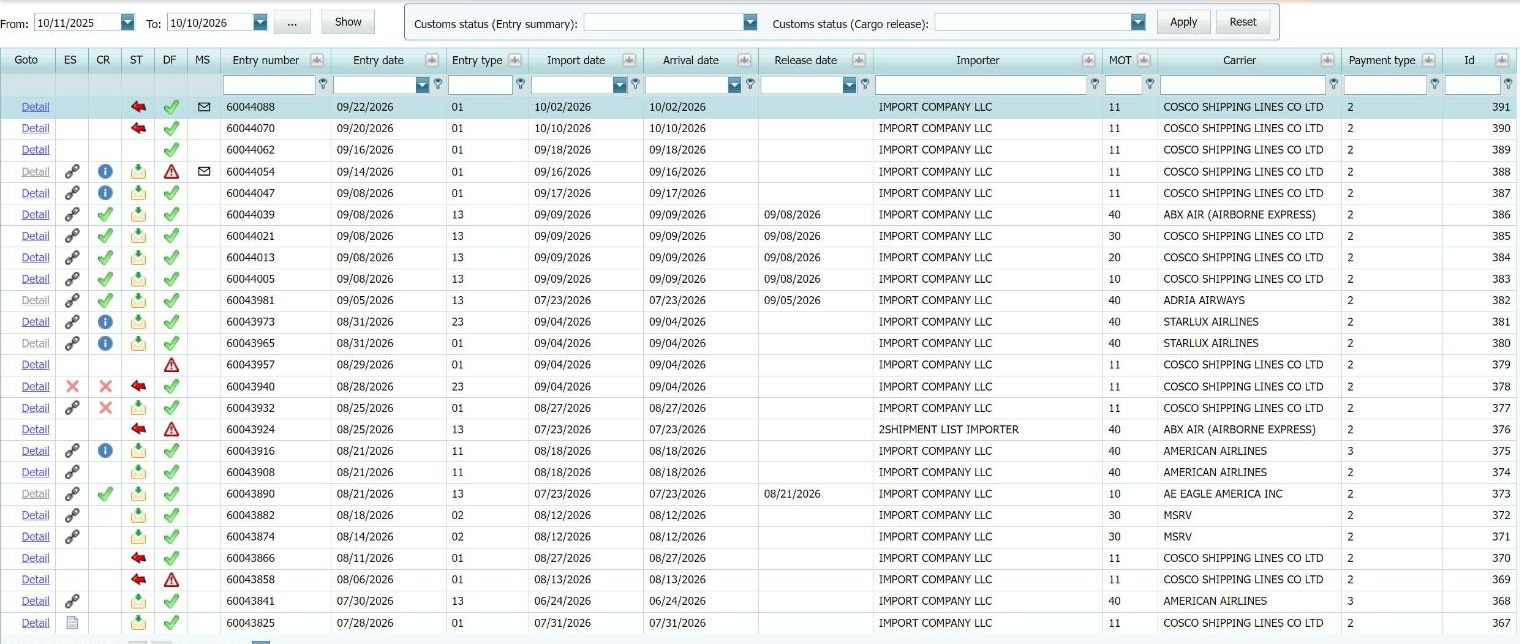
The list shows your customs entries for a period (by default the last 12 months). Choose the dates and press Show, as in Shipments List.
Filtering by Customs status
The framed block above the table has two filters. Choose a value and press Apply; Reset clears both.
| Filter | Values |
|---|---|
| Customs status (Entry summary) | Not in Customs; Accepted in Customs |
| Customs status (Cargo release) | Not in Customs; Accepted in Customs; Accepted & Released in Customs |
Status columns
| Column | Meaning |
|---|---|
| ES | Entry summary in Customs |
| CR | Cargo release in Customs |
| ST | Entry status |
| DF | Duty & Fee |
| MS | Messages: an envelope means the entry has messages. Click it to open the entry on the tab Messages. |
Hover over an icon to see a tooltip. Detail opens the entry page.
7. Entry details
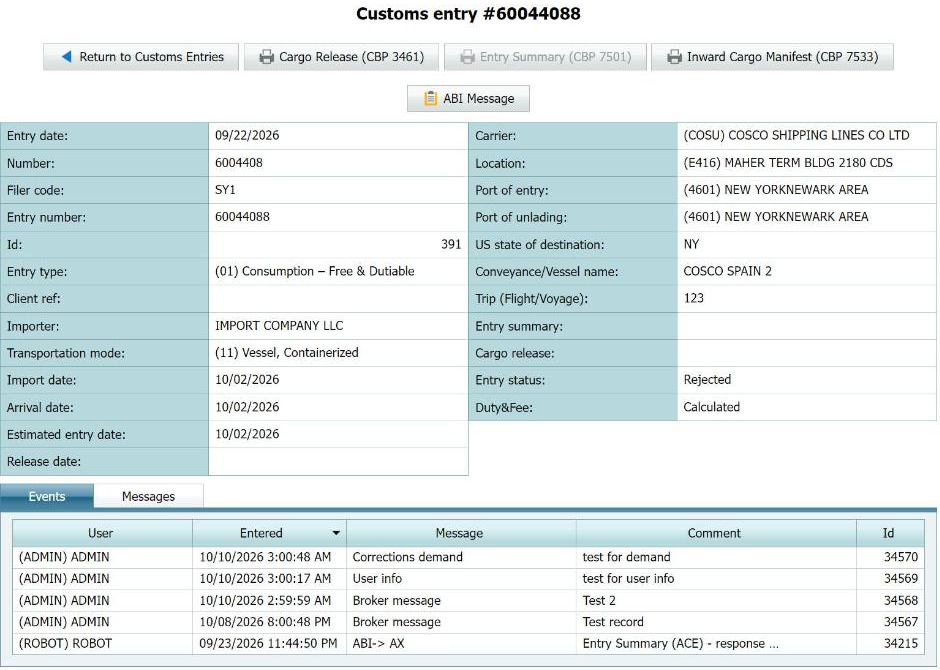
The page shows the main data of the entry (dates, number, importer, carrier, ports, statuses). The buttons at the top:
| Button | What it does |
|---|---|
| Return to Customs Entries | Goes back to the list. |
| Cargo Release (CBP 3461) | Opens the CBP 3461 document (PDF). |
| Entry Summary (CBP 7501) | Opens the CBP 7501 document (PDF). The button is dimmed when the document is not available. |
| Inward Cargo Manifest (CBP 7533) | Opens the CBP 7533 document (PDF). |
| ABI Message | Opens the report of the ABI messages of the entry. |
Under the data there are two tabs: Events (everything recorded for the entry) and Messages (messages for you and from you).
8. Reports and the Harmonized Tariff List
Open the menu Reports and choose a report:
- Customer Invoices
- Accounts Receivable Statements
- Daily ACH Statement
- Extended Summary of Statement
- Statement Audit
Set the report parameters on the page and open the result as a document that you can view and save. Harmonized Tariff List is a separate menu item: search a tariff code or description in the table.
9. Pages in detail
9.1 Shipments List
The starting page after sign-in. It lists your shipments for the chosen period.
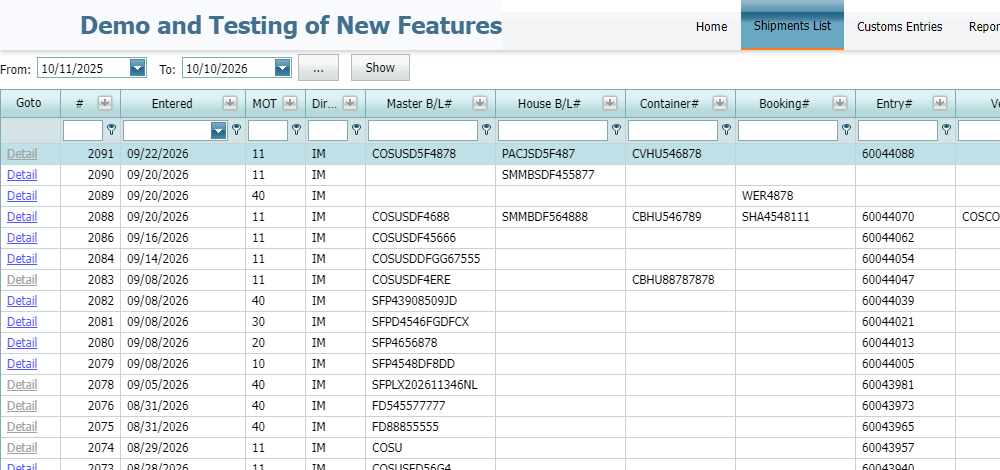
- Choose a period (From / To / ...) and press Show.
- Find shipments by any column: filter row, header filter, sorting.
- Open a shipment with Detail.
9.2 Shipment page
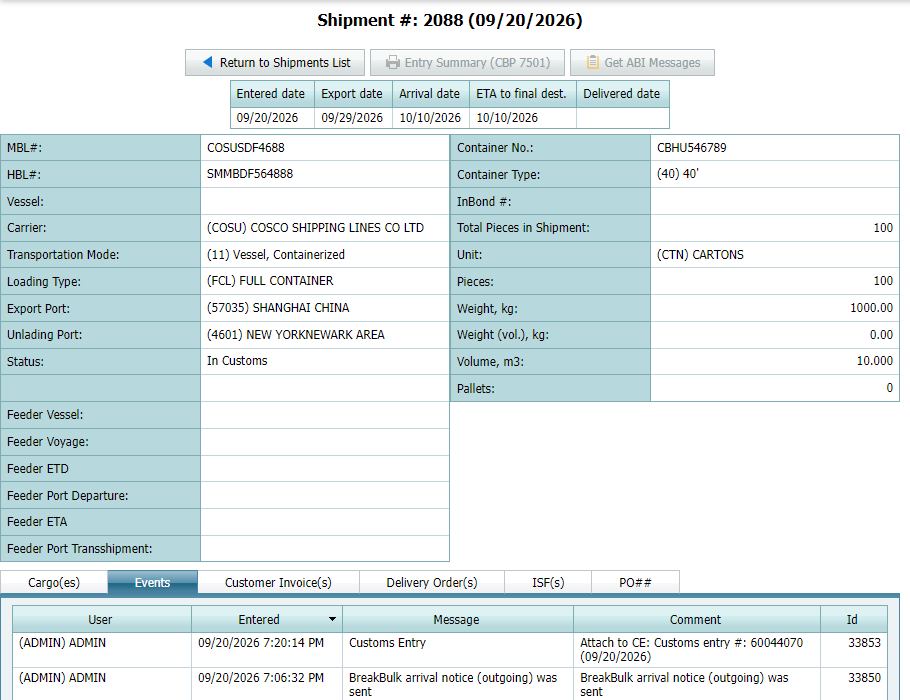
| Area | What you can do |
|---|---|
| Buttons | Return to Shipments List, Entry Summary (CBP 7501) (opens the document), Get ABI Messages. |
| Dates strip | Entered, Export, Arrival, ETA to final destination and Delivered dates. |
| Shipment data | MBL#, HBL#, Vessel, Carrier, Transportation Mode, ports, Status, feeder vessel details, container, pieces, weight, volume, pallets. |
| Tabs | Cargo(es), Events, Customer Invoice(s), Delivery Order(s), ISF(s), PO##. |

9.3 Customs Entries and entry page
See chapters 6 and 7. In short: filter by Customs status, watch the ES / CR / ST / DF / MS columns, open Detail, and use the document buttons and the Events / Messages tabs.
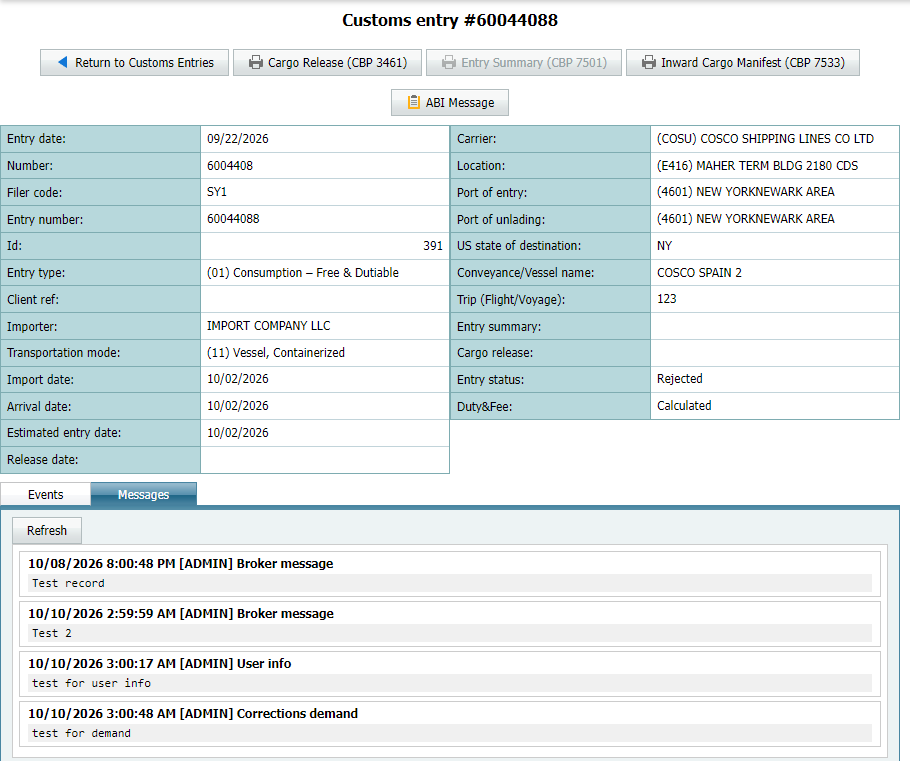
Each message shows the date, the sender in brackets, the type and the text. Refresh reloads the list.
9.4 Reports
| Report | Parameters |
|---|---|
| Customer Invoices | Period From / To (... presets), Customer Invoice# list, Get Report. |
| Accounts Receivable Statements | Aging date, Importer, Get Report. |
| Daily ACH Statement | Period, Daily Statement list, Get Report. |
| Extended Summary of Statement | Monthly Statement, Get Report, Save to Excel File. |
| Statement Audit | Importer; date period by Entry / Release / Print date; payment types; Port and Month filters; Get Report, Save to Excel File. |

9.5 Harmonized Tariff List
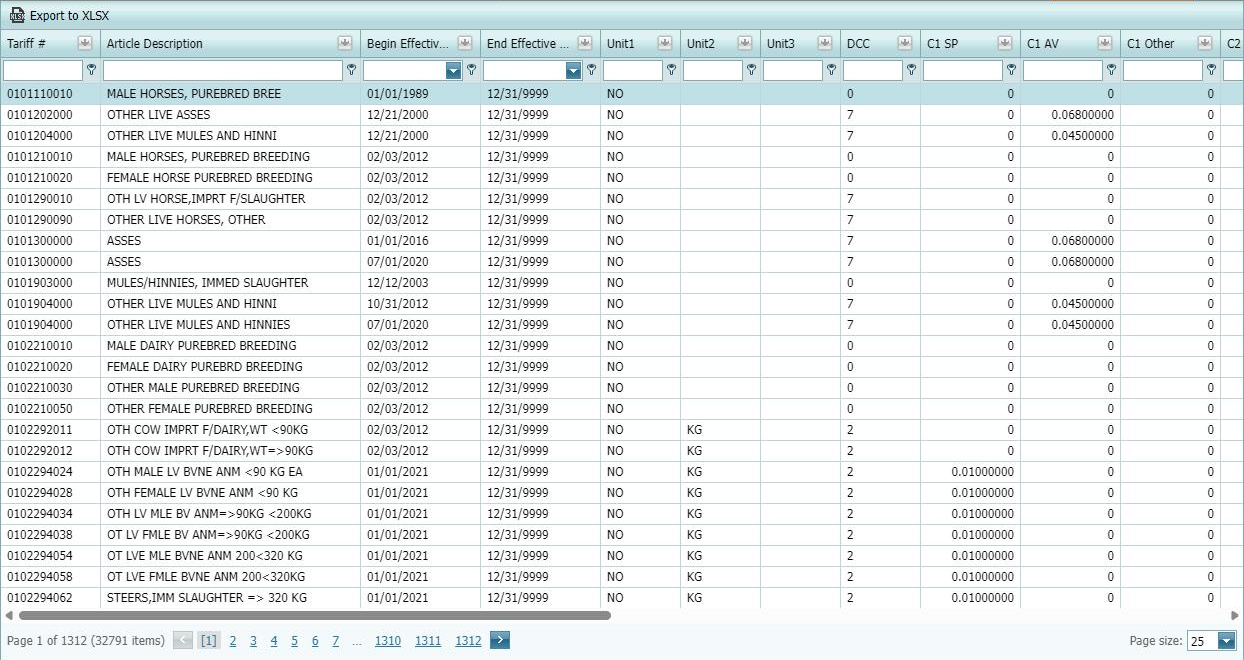
A searchable directory of tariff codes (tariff number, description, effective dates, units, duty rates). Use the filter row and header filters to search; Export to XLSX saves the table to Excel.
10. Working with components
10.1 Period box
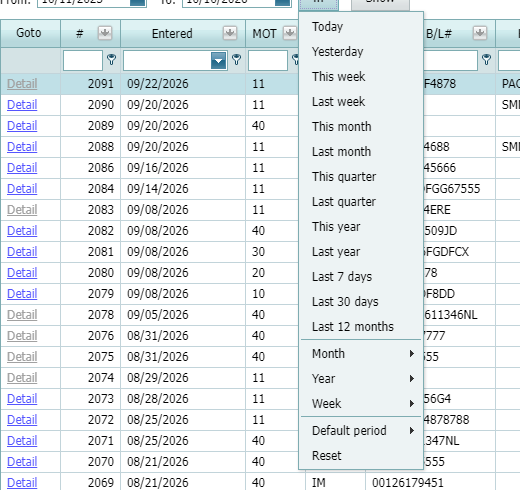
Type or pick dates in From and To. The button ... opens ready-made periods: Today, Yesterday, This/Last week, month, quarter, year, Last 7 / 30 days, Last 12 months, and sub-menus Month, Year, Week, Default period. Reset returns the default. Press Show (or Get Report) to apply.
10.2 Filter row
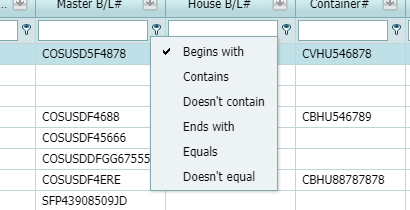
Type a value under a column header. The small icon at the left of the cell chooses the condition: Begins with, Contains, Doesn’t contain, Ends with, Equals, Doesn’t equal.
10.3 Header filter
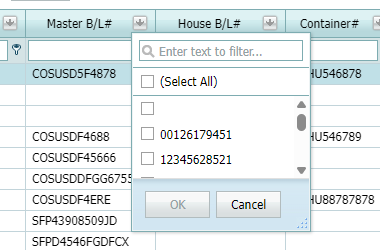
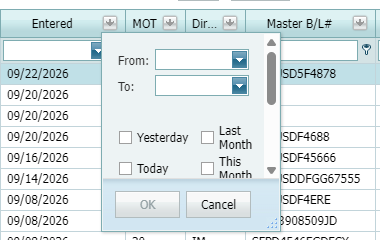
The funnel icon in a header opens a list of values. Type in the search box, tick values (or (Select All)) and press OK. For date columns a window with From / To and quick choices (Yesterday, Today, Last Month, This Month) opens.
10.4 Sorting, paging and page size
- Click a header to sort; click again to reverse.
- Use the page numbers and arrows under the table.
- Page size offers 10, 15, 20 or 25 rows.

10.5 Status filters, tabs and export
- Customs Entries: choose Entry summary / Cargo release status, press Apply; Reset clears.
- Tabs on detail pages switch between related lists; the selected tab is highlighted.
- Export to XLSX / Save to Excel File download the data as an Excel file.

11. Tips and common questions
| Situation | What to do |
|---|---|
| I cannot see the page Customs Entries. | It is available only if enabled for your account. Ask your broker. |
| A message says the account is not allowed to use the website, or is not linked to an importer. | Contact the administrator: the account needs to be set up. |
| A message says the session has expired or I was signed out after inactivity. | Sign in again. Your work is not lost; the data is on the server. |
| My password has expired. | After signing in the portal asks for a new password. Set it as described in section 3. |
| I forgot my password. | Contact your broker or the administrator to reset it. |
| A table looks empty. | Check the period (From / To) and the filters; press Show, Apply or Reset. |
At the bottom of every page you will find Privacy Policy and Contact Us links of the company website.
12. Abbreviations
| Term | Meaning |
|---|---|
| CBP | U.S. Customs and Border Protection |
| ABI | Automated Broker Interface: the electronic channel between the broker and Customs |
| ES / CR / ST / DF / MS | Entry summary / Cargo release / Entry status / Duty & Fee / Messages |
| MOT | Mode of transportation |
| ETD / ETA | Estimated time of departure / arrival |
| B/L | Bill of lading (Master B/L, House B/L) |